
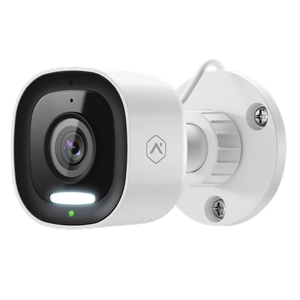
1080p Outdoor Wi-Fi Camera with Integrated Spotlight (ADC-V716)

Preview Box
Introducing the ADC-V716 Outdoor Wi-Fi Camera—an affordable video solution that delivers live video, Two-Way Audio, a built-in siren, plus smart detection for people, vehicles, and animals. The camera features 1080p HDR video, a 110° field of view, and spotlight-enabled color night vision. Dual-band Wi-Fi connectivity increase reliability, while onboard microSD recording provides continuous local storage. Plus, support for Bluetooth® enrollment makes installation and troubleshooting easy. The V716 expands your video portfolio so you can reach new customers.
Key Features
- Spotlight-enabled color night vision
- Bluetooth® Enrollment
- Video Analytics with Object Detection
- AI Deterrence, Perimeter Guard®, and Manually Triggered Warning Sounds
- Continuous Live View with Two-Way Audio
- Onboard Recording with Smart View
- Dual-Band Wi-Fi (2.4 & 5 GHz)
- IP66-rated waterproof & dust-tight
Included Accessories
- 12V, 1 A DC adapter
- Mounting hardware
- Mounting template
Specifications
Specifications
| Max resolution | 1920x1080 (1080p) |
|---|---|
| Recording compression | H.264 |
| Field of view | 110° |
| Night Vision |
Color:
Black & White:
|
| Image adjustments | Flip, brightness, contrast, saturation, sharpness, exposure |
| Wi-Fi compatibility |
|
| Ethernet compatibility | Incompatible |
| Power adapter | 12 V, 1 A DC adapter |
| Operating temperature | -4°F to 122°F (-20°C to 50°C) |
| Operating humidity | 20% – 100% non-condensing RH |
| Dimensions | 2.83 x 2.83 x 4.4" (7.2 x 7.2 x 11.18 cm) |
| Ingress protection | IP66 |
| Compliance | FCC, CE, WEEE, NDAA, IC/ISED |
Feature compatibility quick facts
Feature compatibility quick facts
| Enrollment Methods | BLE mode, AP mode, WPS mode |
|---|---|
| Video Analytics | Video Analytics 2.0 for Person, Animals, and Vehicles For more information, see Configure a Video Analytics rule. |
| Video Motion Detection (VMD) | Incompatible |
| Familiar Face Analytics | Incompatible |
| Familiar Vehicle Analytics | Compatible For more information, see Familiar Vehicle Notifications for Video Analytics. |
| Two-Way Audio | Half-Duplex For more information, see Two-Way Audio Installation and User Guide. |
| Onboard Recording with SD card | Up to 1.5 TB on all firmware versions For more information, see Onboard Recording with Smart View for video devices. |
| SVR Recording |
ADC-SVR210 ADC-CSVR2000P ADC-CSVR2008P ADC-CSVR2016P ADC-CSVR2108P ADC-CSVR2116P For more information, see Associate a video device to an Alarm.com Stream Video Recorder. |
| Simultaneous Live Stream Viewers | 5 For more information, see How many users can view the live video stream simultaneously?. |
| Perimeter Guard | Compatible For more information, see Perimeter GuardTM for video devices. |
| Manually Triggered Warning Sounds | Compatible For more information, see Manually Triggered Warning Sounds for proactive video deterrence. |
| AI Deterrence (AID) | Compatible For more information, see AI Deterrence (AID) Autonomous Audio Response Services. |
| Business Activity Analytics | Incompatible |
| Factory Reset | Press and hold the multi-purpose/reset button  until the LED is flashing green and red (about 15 seconds), then release the button. until the LED is flashing green and red (about 15 seconds), then release the button. |
LED reference guide
LED reference guide
| LED pattern | Description |
|---|---|
|
Off
|
Power off |
|
Solid green
|
Connected to Alarm.com |
|
Blinking green
|
Local network connection |
|
Blinking red and green
|
Reverting to factory default settings |
|
Blinking red
|
Power on, camera booting |
|
Solid red
|
No local or Internet connection |
|
Blinking blue
|
Wi-Fi Protected Setup (WPS) mode |
|
Blinking white
|
Bluetooth Enrollment (BLE) mode and Access Point (AP) mode |
|
Blinking red and blue
|
Perimeter Guard camera light alert activation |









Overviews
Topics
User guides
- Configure a Video Analytics ruleAlarm.com Video Analytics continuously scans a property and sends a notification when a person, vehicle, or animal is identified. Advanced detection rules enhance perimeter security by sending alerts when someone is coming or going, or even loitering on the property.
How-to troubleshooting guides
Frequently asked questions
Videos
Training
General information
- AI Deterrence (AID) Autonomous Audio Response ServiceStop intruders in their tracks with Alarm.com's adaptive crime deterrent solution, AI Deterrence (AID) Autonomous Audio Response Service. AID recognizes that there is a trespasser, what they are wearing, what color their clothes are, and their location on a property. Its adaptive verbal warnings create the impression of a live operator response but at a lower cost and latency than traditional operator-initiated Two-Way Talkdown.
- Alarm.com video ports and protocols requirements
- Bluetooth Mode Installation guideBluetooth® (BLE) mode allows for devices to be added to a secure home wireless network by connecting to the device from a mobile device (e.g., phone) using Bluetooth and selecting the desired network. The capability offers support for saved networks and the installation wizard includes active error handling. This capability also makes it easier to troubleshoot cameras that fall offline by providing a quick way to reconnect.
- Can I splice the camera power cable?
- Can a video device use both an Onboard (SD card) and SVR recording schedule simultaneously?Yes. A video device can record continuously to an Onboard recording schedule and SVR recording schedule at the same time.
- Change the Wi-Fi network settings of a video deviceYou can change a video device's network information manually using the Customer website as long as the device has power and is still connected to an active network.
- Configure Privacy Zones for video devicesDraw Privacy Zones to obscure parts of a video device's view (i.e., public sidewalks or a driveway) from all future live and recorded footage. Up to three Privacy zones per camera can be configured using the Customer website.
- Do Alarm.com cameras have a default IP address?Alarm.com cameras do not have a default IP address before installation and require a network with Dynamic Host Configuration Protocol (DHCP) enabled to enroll.
- Familiar Vehicle Notifications for Video AnalyticsWith Familiar Vehicle Notifications for Video Analytics, Video customers can know exactly whose cars are coming and going. Familiar Vehicle Notifications for Video Analytics lets customers identify familiar vehicles and receive customized alerts when either known or unknown cars are detected.
- High Dynamic Range (HDR) for video devicesCameras equipped with High Dynamic Range (HDR) can show more detail in the dark shadows and bright highlights of an image. HDR is especially useful for capturing clear video in areas with harsh lighting conditions (e.g., a camera on a covered porch, under an awning, facing a bright light source, etc.).
- How much Onboard Recording footage can be stored on a microSD card?
- How often does Alarm.com check the connectivity of the video cameras?Video camera connectivity is verified every 8 hours.
- Onboard Recording (SD card) with Smart View for video devices
- Perform an Internet speed testAn Internet speed test can help determine if a network has the bandwidth required to support Alarm.com video devices.
- Reconnect a camera to a wireless network if the router, equipment, or Wi-Fi settings change
- Request the wireless signal strength of a video deviceVideo device wireless signal strength can be checked remotely for devices on the customer account at any time using the Customer app or Customer website, or during installation for supported devices using the Customer app. It is generally recommended for video devices to have at least 66% wireless signal strength.
- Two-Way Audio Installation and User GuideTwo-Way Audio lets users talk and listen remotely through compatible video devices and hear recorded audio in saved clips. It works in the Customer app, Customer website, and on some supported panels when live video streaming is enabled. Supported cameras use either Half-Duplex audio, which requires pressing and holding to talk, or Full-Duplex audio, which allows simultaneous speaking and listening.
- Update the firmware of a video deviceThe firmware of an Alarm.com video device can be updated remotely using the Partner Portal, MobileTech app, or Customer website. Keeping the firmware up-to-date ensures that the device will be compatible with new features.
- View continuously recorded video using Smart ViewStream footage is recorded using a Stream Video Recorder (SVR) or an Onboard Recording rule at any time using Smart View. Playback of continuously recorded video is available using the Customer website or Customer app. This article details how to view, navigate and download clips from the Smart View timeline.
- What are the internet service and bandwidth requirements for Alarm.com video devices?The upload speed bandwidth requirements for Alarm.com video devices. The network requirements can vary based on the model or camera type.
- What internet browser software is needed to use Alarm.com video devices?The Alarm.com Customer website supports most popular desktop and laptop browsers, including Google Chrome, Microsoft Edge, Safari version 10.1 or later, and Mozilla Firefox.
- What is WebRTC end-to-end video streaming?WebRTC is one type of technology that Alarm.com uses to establish a connection between a camera and a customer device. It is supported by all major browsers and is widely used in real-time communication applications, including Google Meet and Microsoft Teams.
- What is the difference between Half-Duplex and Full-Duplex audio?♦ Half-Duplex audio allows only one communication channel to be used at a time, similar to a walkie-talkie or traditional two-way radio. These devices require the user to manually enable and disable the camera's microphone and speaker. ♦ Full-Duplex audio allows both communication channels to speak and listen simultaneously, similar to a telephone call. These devices require the user to tap or click the microphone icon once to toggle on microphone and speaker functionality during a stream.
- When does live or saved video contain audio?
- Which wireless protocols do Alarm.com video devices support?