
Customer is not receiving notifications
Notice: For Canadian Dealers, text based notifications to Bell subscribers will be degraded on December 31, 2025, due to changes in how Bell handles messaging. For phones with Bell, it is recommended to set up Push Notifications. For more information about configuring push devices and notifications, see Configure mobile push notification devices. For more information about the Bell SMS/MMS notification sunset, see Bell text messaging notification sunset.
There are a few reasons a user may not be receiving notifications. Those causes can vary depending on what type of notification should be sent. For recommended troubleshooting for each type of notification, see Additional troubleshooting.
A typical reason a user may not be receiving notifications is that it is paused on the Alarm.com customer website.
Example: If notifications on an account are paused, and the email is attached to a notification for alarms, system events, and arming events, it will not receive notifications for these events. Once notifications are resumed on the account's email, it will again receive events for each notification type including alarms, system events, and arming events. Any of these notifications can be opted out of by going to the Notifications page and editing the notification itself.
To resume notifications to an email address or phone number:
- Log in to the Alarm.com customer website.
- Click Users.
- Click the relevant user.
- Click the specific email address or phone number that is paused.
- Click the Enable toggle switch to enable notifications.
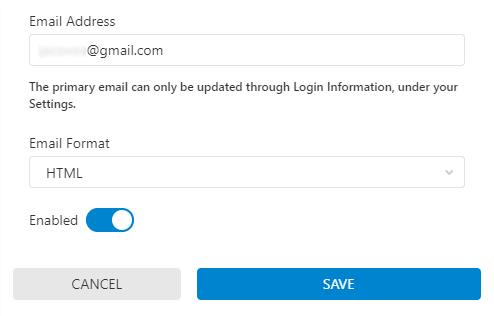
- Click Save.
If the user is still not receiving notifications, see the following additional troubleshooting articles.
Additional troubleshooting
- T-Mobile & Verizon users cannot receive multimedia attachments (i.e., video clips and thumbnail images) and instead receive SMS messages with links to the same content. It is recommended to use push notifications. For more information, see Push Notification Benefits.
- Additionally, if the user uses T-Mobile, and text message communication has been paused, direct the user to contact T-Mobile in regards to their personal phone and request that shortcode messages be allowed on their account.
- Some carriers may have restrictions that prevent Alarm.com from delivering all forms of SMS notifications. It's recommended when using carriers such as AT&T, Bell, and Rogers to use push notifications. For more information on enabling push notifications, see Configure mobile push notification devices.
Additional resources
For email notifications, see Customer is not receiving email notifications.
For SMS text notifications to a phone, see Customer is not receiving SMS text notifications.
For push notifications to a smartphone or tablet on the app, see Customer is not receiving push notifications.
For notifications being paused automatically, see Notifications are being paused by an Automated Process.