
Video Device Recovery with Bluetooth (BLE) Mode
Video Device Recovery with BLE allows users to quickly and easily reconnect their video devices when they go offline using the Alarm.com app. When a compatible device goes offline, the Alarm.com app detects it and prompts a guided, step-by-step experience that re-connects the device to the network via Bluetooth.
Compatibility requirements
One of the following Alarm.com video devices:
| Device | Minimum hardware version | Minimum firmware version |
|---|---|---|
| ADC-V730 | 0401+ | 05019+ |
| ADC-VDB775 | 0104+ | 04019+ |
- An iOS or Android mobile device that supports Bluetooth
- Alarm.com Alarm.com app on iOS app version 5.13.3+ or Android app version 5.10.3+
To begin Video Device Recovery with BLE
Users can begin the Video Device Recovery process from any of the following starting points using the Alarm.com app:
Push notification or Trouble Conditions screen
Note: Video Device Recovery using push notifications or the Trouble Conditions screen is not possible until a Video Device Not Responding Trouble Condition appears on the customer account, which can take 8-16 hours to populate.
- Acknowledge the Video Device Not Responding Trouble Condition in one of the following two ways:
Push notification
- Interact with a Video Device - Not Responding push notification to open the Alarm.com app.
Trouble Conditions screen
- Log in to the Alarm.com app.
- Tap Issues.
- Tap the Video Device - Not Responding notification for the affected device.
- Tap Reconnect Device to begin Video Device Recovery.

Dashboard stream on the Home screen
- Log in to the Alarm.com app.
- In the Video card, tap Troubleshoot on the affected camera's dashboard stream to begin Video Device Recovery.
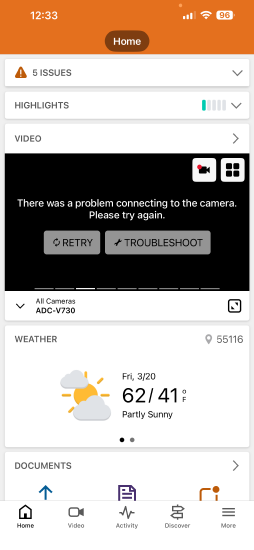
Live View stream on the Video screen
- Log in to the Alarm.com app.
- Tap
 .
. - Tap Troubleshoot on the affected camera's Live View stream to begin Video Device Recovery.

Device Overview screen pop-up
- Log in to the Alarm.com app.
- Tap .
- Tap
 .
. - Tap to select the desired device.
- Tap Reconnect Device.

Network Settings screen
- Log in to the Alarm.com app.
- Tap .
- Tap .
- Tap to select the desired device.
- Tap Network.
- Tap Reconnect Device.

To reconnect a video device with BLE using the Alarm.com app
Note: The first few steps for this process will differ slightly based on the user's starting point. Refer to the various starting points outlined above in To begin Video Device Recovery with BLE to determine which method you will use to start the process.
- Verify the video device is powered on, then tap Next.

- Make sure your phone is within 15 feet of the video device without any obstacles in the way, then tap Scan.

Note: You may be prompted to enable Bluetooth access and functionality if it is not already enabled. - Select the Wi-Fi Network from the list to reconnect the device, or tap Manual Setup.

- Enter in the required information, then tap Connect.
Wi-Fi Network selected from list

Manual Setup selected

- Remain close to the video device while the connection process is completed. Tap Done when prompted to exit Video Device Recovery.
Verifying network connection

Device reconnection success

Troubleshooting
The device recently went offline, but the option to reconnect does not appear
- Verify the device supports Video Device Recovery with BLE
- Refresh the Alarm.com app
- Close the Alarm.com app entirely, then re-open it
Video Device Recovery was successful, but the option to reconnect still appears
- Refresh the Alarm.com app
- Close the Alarm.com app entirely, then re-open it