
Configure Scheduled and Temporary panel user codes
Scheduled and Temporary user codes allow a user access to the system during a specified time frame. Between the specified time period, the code can arm and disarm the system at any time.
- Scheduled user codes allow a user code to have access to the system during a specified time period each week.
Example: In the following example, the scheduled user code is given access to the system for every Monday through Friday between 8:00 AM to 4:00 PM.

- Temporary user codes allow a user code to have access to the system during a specified time period.
Example: In the following example, the temporary user code is given access to the system for December 5, 2020, from 8:00 AM until December 12, 2020, at 4:00 PM.

Compatibility
Panels that do not allow the module to program codes while armed are incompatible. The following table outlines panel compatibility with programming codes while armed to allow for scheduled and temporary user codes.
Note: When using the Alarm.com Universal Communicator (AUC), remote user code management is not supported.
| Device | Compatibility |
|---|---|
| 2GIG EDGE | Compatible |
| 2GIG GoControl 1 / 2 | Requires firmware 1.9+ |
| 2GIG GC2e | Compatible |
| 2GIG GC3/e | Requires firmware 3.2.5+ |
| 2GIG GC Touch | Compatible |
| DSC Impassa | Incompatible |
| DSC Iotega | Compatible |
|
DSC PowerSeries Neo |
Requires firmware 1.35+ Note: This panel is also compatible with One Time User codes. For more information, see One Time User codes for DSC PowerSeries Neo and Pro. |
|
DSC PowerSeries Pro |
Requires firmware 1.10+ Note: This panel is also compatible with One Time User codes. For more information, see One Time User codes for DSC PowerSeries Neo and Pro. |
| Interlogix Concord 4 | Incompatible |
| Interlogix NX | Compatible |
| Interlogix Simon XT / Simon XTi / XTi-5 / XTi-5i | Compatible |
| Qolsys IQ Panel / DSC Touch | Compatible |
| Qolsys IQ Panel 2 / IQ Panel 2 Plus / IQ Hub / IQ Panel 4 / IQ4 Hub / IQ Pro / IQ4 NS / IQ Panel 5 / IQ5 Hub / IQ5 NS | Compatible |
| SEM - DSC PowerSeries | Incompatible |
| SEM - Honeywell/ADEMCO Vista | Incompatible |
| Z-Wave locks | Compatible |
| Wi-Fi locks | Incompatible |
| PowerG locks | Compatible |
Configure Scheduled and Temporary panel user codes
Scheduled and Temporary panel user codes can be configured using the Alarm.com customer website and Alarm.com app. For additional information about adding user codes remotely, see Add user codes remotely.
To configure schedules or temporary access using the Alarm.com customer website:
- Log in to the Alarm.com customer website.
- Click Users.
- Click to select the user to configure.
- If creating a new user code, click Add User and then follow the steps to create a new access code.
- Click Time to set which times the user code can access the system.
- At all times - Allows the user to access the system at all times.
- Restricted schedule - Create a weekly access schedule for certain times the user can access the system.
- Temporary access - Create a one-time access window for the user to access the system.
- Click Save. Allow a few minutes for the Time settings to save to the system.
To configure schedules or temporary access using the Alarm.com app:
Note: This functionality is only available for single system users and will not display for Enterprise logins.
- Log in to the Alarm.com app.
- Tap
 .
. - Tap Users.
- Tap to select the user to configure.
- If creating a new user code, tap
 and then follow the steps to create a new access code.
- If creating a new user code, tap
- Tap Time to select the user's access period to the device.
- At all times - Allows the user to access the system at all times.
- Restricted schedule - Create a weekly access schedule for certain times the user can access the system.
- Temporary access - Create a one-time access window for the user to access the system.
- Tap Save. Allow a few minutes for the Time settings to save to the system.
Considerations for panels that do not support scheduled and temporary user codes
Accounts that have Z-Wave locks
If there is a Z-Wave lock on the account, the option for scheduled and temporary user codes only appear for lock access codes. If the panel is not compatible with scheduling, panel access can only be applied to remain active at all times, but scheduled user codes are able to be applied if only locks are selected.
Note: It is possible to create a lock rule to disarm the panel when the user code is entered.
If a restricted schedule or temporary access is attempted to be added for panel access on an incompatible system, the following message appears:
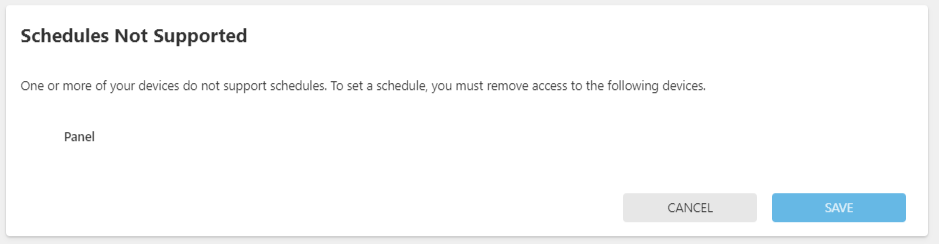
The following is an example of what appears on the Alarm.com customer website if a lock's schedule or temporary access it attempted to be applied on a panel that is not compatible with scheduled or temporary codes.

One Time User codes for DSC PowerSeries Neo and Pro
In addition to Scheduled and Temporary user codes, the DSC PowerSeries Neo and DSC PowerSeries Pro also support One Time User codes.
One Time User codes offer the following:
- One Time User codes are not set for a specific time frame.
- One Time User codes can disarm the system only one time per day.
- One Time User codes can arm the system multiple times per day.
Note: DSC PowerSeries Neo and DSC PowerSeries Pro are the only panels that support One Time User codes.
To set up a user with a One Time User code:
- Log in to the Alarm.com customer website or Alarm.com app.
- Click Users from the menu.
- Select the user to edit.
- Click User Type.
- Click to select One Time User.
- Click Save.

Note: One Time Users are not allowed to have lock access.