
View live video
Live video from cameras and video devices can be viewed using the Alarm.com app and Alarm.com customer website.
View live video
Alarm.com app
- Log in to the Alarm.com app.
- Tap Video.
- Tap the desired video to start streaming.
Alarm.com customer website
- Log in to the Alarm.com customer website.
- Click Video. The video starts streaming automatically.
Note: Live video from SkyBell Doorbell Cameras can only be viewed using the Alarm.com app.
Live video functionality
Mobile device compatibility
Streaming live video is available on the Alarm.com app. The Alarm.com app is available on iOS and Android.
Note: iPhones and iPads should use the Alarm.com app to display live video. Most mobile browser versions are not able to view live video.
Web browser compatibility on computers
{{companyname} video features are available on the most recent versions of Edge, Firefox, Safari, and Chrome on both Windows and Macintosh computers.
Note: For SkyBell Doorbell Cameras, live video can only be streamed using the Alarm.com app. Saved clips can be viewed using both the Alarm.com customer website and Alarm.com app.
Device-specific considerations
ADC-V731B
If a user is viewing the live video stream for an ADC-V731B, the camera will not be able to trigger Video Analytics rules.
How video devices are listed
Cameras are listed alphabetically in the Alarm.com app and Alarm.com customer website.
Streaming methods and timeout expectations
WebRTC is one type of technology that Alarm.com uses to establish a connection between a camera and a customer device. It is supported by all major browsers and is widely used in real-time communication applications, including Google Meet and Microsoft Teams.
Compatibility requirements
WebRTC end-to-end streaming requires one of the following video devices with firmware 0.6.7.852+ when using the Alarm.com customer website, or firmware 0.6.6.770+ when using the Alarm.com app:
- 1080p Indoor Wi-Fi Camera (ADC-V516)
- 1080p Indoor Wi-Fi Camera (ADC-V523/523X)
- 1080p Outdoor Wi-Fi Camera (ADC-V723/723X)
- 1080p Outdoor Wi-Fi Camera with Two-Way Audio (ADC-V724/724X)
- 4MP Outdoor Spotlight Camera (ADC-V730/VC730P)
- 1080p Mini-Bullet Camera (ADC-VC727P)
- Pro Series 1080p Dome PoE Camera (ADC-VC827P)
- Pro Series 4MP Bullet PoE Camera with Varifocal Lens (ADC-VC728PF)
- Pro Series 4MP Varifocal Turret Camera (ADC-VC838PF)
- Pro Series 1080p Dome PoE Camera with Varifocal Lens (ADC-VC847PF)
- 4MP Outdoor Camera Floodlight (ADC-V729/V729AC/VC729P)
- Alarm.com Premium Video Doorbell Camera (ADC-VDB775)
- 4MP Indoor/Outdoor Battery Camera with Two-Way Audio and Integrated Spotlight (ADC-V731B)
WebRTC connection types
There are three different types of WebRTC connections used with Alarm.com devices, depending on the network conditions between the camera and the customer's device. The types of connection are as follows (in the order in which they are attempted):
- WebRTC Direct connection
- WebRTC Relayed connection
- WebRTC Proxy connection
Each type of WebRTC connection provides a slightly different customer experience which is described in the following sections. Understanding how each connection type affects the customer experience is important.
Note: There are different icons for each streaming method in the Alarm.com customer website, and it may take a few minutes to configure the WebRTC live stream and for the icon to appear. The WebRTC streaming method icon does not appear when using Log In with Access without video access.
WebRTC Direct connection
WebRTC Direct connection is a peer-to-peer connection in which a direct connection has been established between a camera and a customer's viewing device (e.g., mobile phone or laptop).
Because the streams don't have to go through an intermediary server, this type of connection allows users to stream for an unlimited amount of time. In other words, the streams won't time out unless an adverse network condition occurs and the connection is interrupted. This type of connection is attempted first and is successful roughly 60-70% of the time. A Direct connection is most likely to succeed in simple network environments, such as residential homes.
When WebRTC Direct streaming is active,  will appear on the camera live stream. Mouse over the icon to display the message: Continuous streaming connected.

Topology limitations
Connecting Alarm.com cameras downstream from a Stream Video Recorder (i.e., connected through the PoE ports or Camera port) may impact the ability to achieve a WebRTC Direct connection in certain configurations. If the cameras are connected upstream from the SVR (i.e., on the same network), they should be capable of maintaining a WebRTC Direct connection. To attempt to force a WebRTC Direct connection, proceed to To force a WebRTC Direct connection stream.
Compatible third-party cameras should be able to achieve WebRTC Direct streaming whether they are installed downstream or upstream from the Stream Video Recorder.
WebRTC Relayed connection
A WebRTC Relayed connection is used when a Direct connection between the camera and the customer's viewing device (e.g., mobile phone or laptop) cannot be established. This typically occurs due to network conditions such as firewalls, certain Network Address Translation (NAT) configurations, or other connectivity restrictions. To resolve this, WebRTC will relay the video and audio stream through an intermediary server on a public network. With this method, a time out period of 15 minutes is enforced for live view. This type of streaming is attempted second and makes up roughly 30% of total streams.
When WebRTC Relayed connection streaming is active,  will appear on the camera live stream. Mouse over the icon to display the message,Stream will time out in 15 minutes.

WebRTC Proxy connection
WebRTC Proxy connection means that attempts to establish a Direct or Relayed connection have failed. Like a Relayed connection, a Proxy connection relays media through an intermediary server and has a time out period of 3 minutes. This type of connection accounts for roughly 5% of total streams.
Currently, customers do not have audio access to their camera while on a Proxy connection. However, Remote Video Monitoring (RVM) operators have audio access and can have Two-Way Audio conversations.
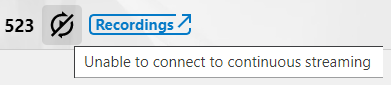
For cameras that support WebRTC Direct or Relayed connections but are streaming over WebRTC Proxy,  will appear in the feed. Mouse over the icon to display the message, Unable to connect to continuous streaming.
For cameras that do not support WebRTC Direct or Relayed connections, and can only stream over proxy, no icon will appear on the stream.

Change connection types
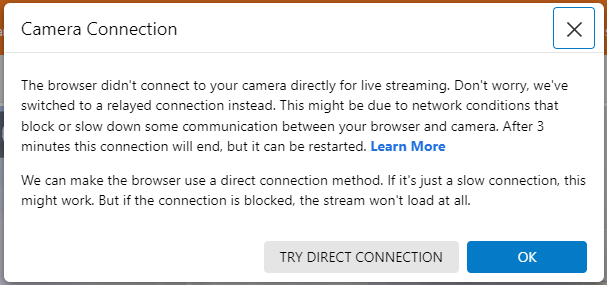
In instances where a Direct connection is desired and was not initially successful, customers can attempt to force a Direct connection.
To force a WebRTC Direct connection stream:
- Log in to the Alarm.com customer website.
- Click Video.
- On the Live Video or SVR Timeline pages, mouse over a camera live stream.
- Click on the stream-type indicator icon
 or .
or . - In Camera Connection, click Try Direct Connection.

Live video stream time out
In addition to the Alarm.com customer website and Alarm.com app, continuous live-streaming video is available through these devices/platforms:
- Alarm.com video for TV
- Amazon Fire TV
- Apple TV
- Android TV
- For more information, see Alarm.com video for TV
Note: When viewing third-party cameras using Alarm.com video for TV, the live stream will time out after 10 minutes regardless of the settings used.
- SVR playback with an external monitor
- For more information, see Play back video locally using a TV.
- Qolsys panels
- IQ Panel 4 and IQ4 Hub on firmware 4.6.1+ only for Two-Way Audio cameras
- All Qolsys panels for cameras without Two-Way Audio
Speed Up Remote Connection Initiation
When Speed Up Remote Connection Initiation is enabled, the video loads faster while you are far away from the camera's location. This feature needs to be disabled to continuously stream from the Alarm.com for TV apps, and can be configured using the Alarm.com app or Alarm.com customer website.
Alarm.com app
- Log in to the Alarm.com app.
- Tap
 .
. - Tap
 .
. - Select the desired video device.
- In Settings, tap Video.
- Tap the Speed Up Remote Connection Initiation toggle switch to enable or disable the setting as desired.
- Tap Save.
Alarm.com customer website
- Log in to the Alarm.com customer website.
- Click Video.
- Click Settings.
- Select the desired video device.
- Click Video.
- Click the Speed Up Remote Connection Initiation toggle switch to configure the setting as desired.
- Click Save.
Digital zoom
You can digitally zoom in and out on a live video feed using the Alarm.com app and Alarm.com customer website.
Note: Digital zoom is not available on saved clips.
Alarm.com app
You can pinch to digitally zoom in/out on a live video feed and pan around when zoomed in, but the camera's video quality and optical zoom level will remain the same.
Note: This feature requires Alarm.com iOS app versions 4.1+ or Android app versions 4.2+.
- Log in to the Alarm.com app.
- Tap Video.
- Tap the desired video.
- To zoom in, move two of your fingers apart while they are touching the live video feed.
- To zoom out, move two of your fingers together while they are touching the live video feed.
- For a quick reset to default zoom, double-tap the video.
Alarm.com customer website
You can use the video interface to digitally zoom in/out on a live video feed and pan around when zoomed in, but the camera's video quality and optical zoom level will remain the same.
Note: Some video devices have integrated digital or physical pan-tilt-zoom (PTZ) features and use a similar interface that allows you to save and apply preset orientations. For more information about presets and which cameras support them, see Change a pan/tilt camera's position presets.
- Log in to the Alarm.com customer website.
- Click Video.
- Mouse over the desired video, then click
 .
.
- To zoom in, click
 .
. - To zoom out, click
 .
. - To pan, click
 ,
,  ,
,  , or
, or  .
. - To reset to default, click
 .
. - Alternatively, use the scroll wheel to zoom and click and drag to pan while mousing over the video.
- To zoom in, click
Note: On the Onboard 24/7 and SVR Timelines, this feature is unavailable when the live feed is paused on the Alarm.com customer website.
Simultaneous viewers
Multi-camera live view and group management for mobile
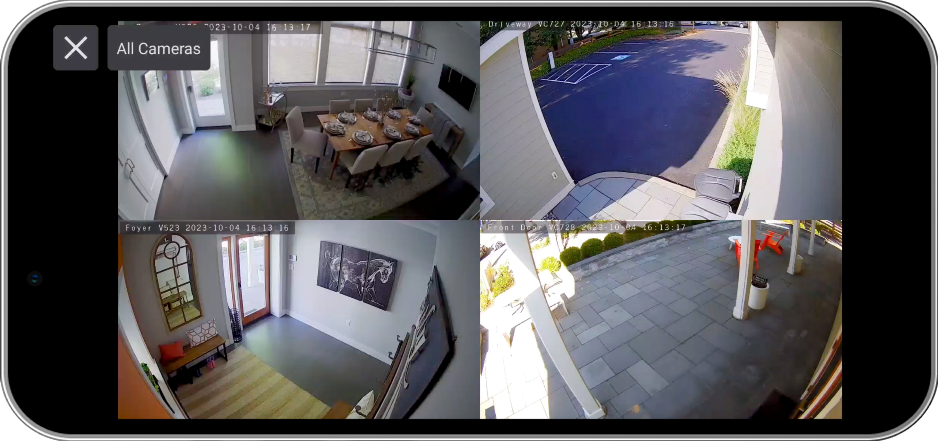
Multi-camera live view for mobile allows customers to view up to 4 live streams simultaneously when using the Alarm.com app.
Note: Multi-camera live view is only available on the Alarm.com app through the Video Card. While doorbells can be added to groups and viewed on the Alarm.com customer website together, this will not be seen on the Alarm.com app unless there are other video devices on the customer account.
Multi-camera view layout options
After logging in to the Alarm.com app, tap  in the Video card to begin the live streams.
- To change the live view:
- Tap a single camera to view the individual live stream. Tap
 to return to the multi-camera live view.
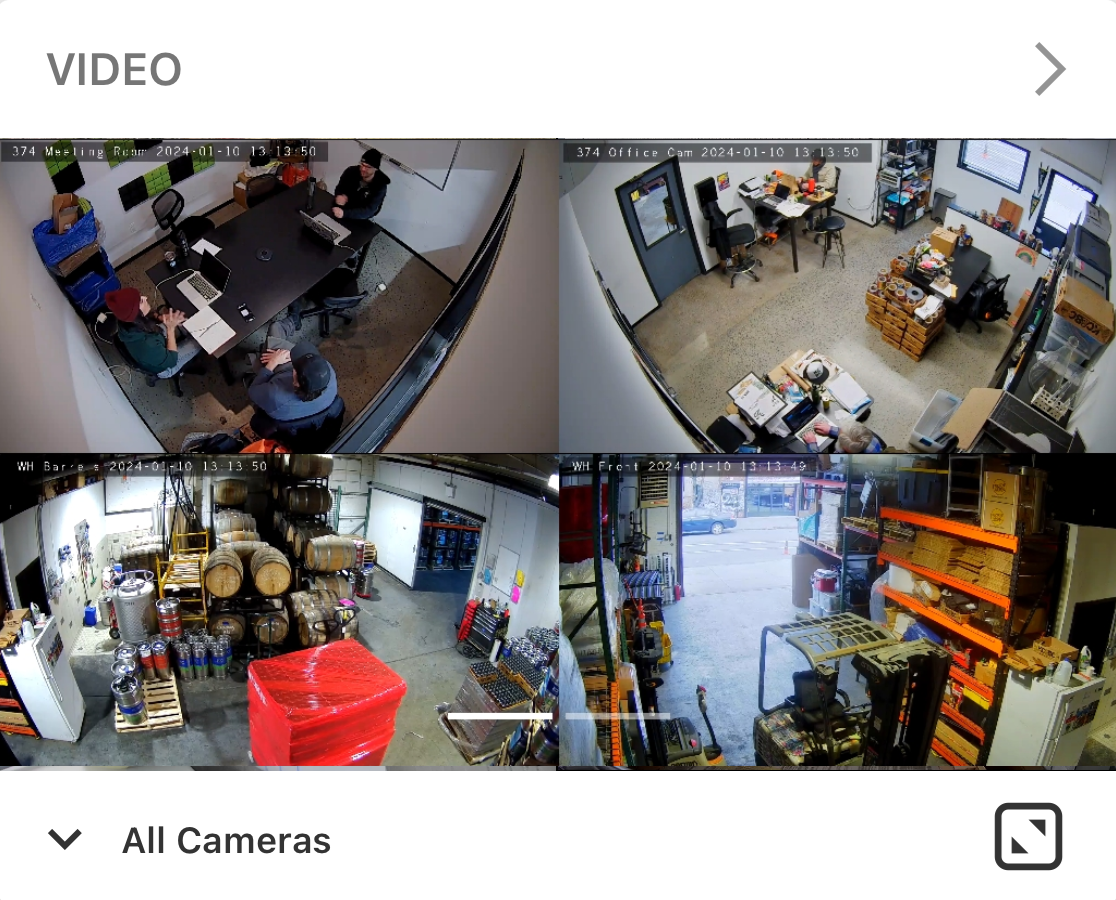
 - Tap the All Cameras dropdown menu to select the desired camera group through the Video card on the home page and the expanded view.
- Tap
 to expand or minimize the multi-camera live view.
 - Swipe left/right to change the cameras and groups in both the expanded and minimized view.
- Tap a single camera to view the individual live stream. Tap
Video recording
For information about recording video clips, see Take a video recording.
Camera groups
Create and edit camera groups from the Manage Camera Groups page, which includes a preview of each camera. For more information about camera groups, see Create/edit a camera group.
Camera groups allow you to customize the position in which the cameras appear on the Video page.
Toggle high definition
Click  to toggle between high definition and non-HD. High definition offers the best quality resolution, but non-HD allows the user to reduce the quality if bandwidth is a concern.
Search for cameras
Type a name into the camera search bar to find individual cameras. This is ideal for accounts with many cameras.
Note: The search bar only appears when the selected camera group has more than four cameras.
Expand / Full screen
Using the Alarm.com app, view live video in full screen by tapping  .
.
Using the Alarm.com customer website, view live video in full screen by clicking  , view in theater mode by clicking
  , or view expanded live video by clicking .
Layout options
Note: The live video streams will automatically resize to fit the screen.
Using the Alarm.com customer website, you can view up to 25 live video streams at a time.
 is the default live video stream layout. Click or to decrease or increase the amount of cameras displayed up to a 5+5 layout.
 - To arrange live video streams with a preset layout, click and select the desired layout.
- Click
 to arrange streams in a 1+3 layout.
 - Click
 to arrange streams in a 1+5 layout.
 - Click
 to arrange streams in a 1+7 layout.
 - Click
 to arrange streams in a 2+8 layout.
 - Click
 to arrange streams in a 4+2+4 layout.
Note: Live video stream layouts will not display if you do not have enough cameras to fill it.
- Click
- If you have more than 25 cameras, click or to view additional stream pages.
Using the Alarm.com app, the live video streams are arranged in a grid based on screen size.
- Flick up or down to scroll between streams.
Swipe between live video feeds
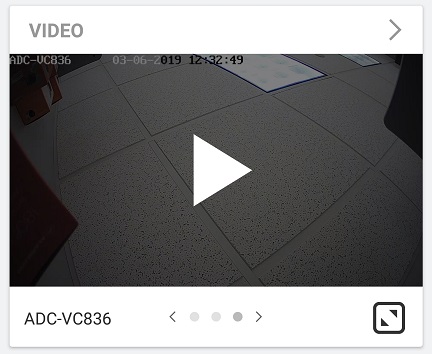
Users can swipe between different cameras on the Alarm.com app dashboard and when viewing feeds in landscape.
Note: This feature requires Alarm.com iOS app versions 4.5+ or Android app versions 4.5.1+.
- Log in to the Alarm.com app.
- On the Video card, swipe left/right between cameras.
- Tap
 to play live video.
Two-Way Audio user features
Two-Way Audio is designed so that only one channel (i.e., incoming audio from the camera to the mobile device or outgoing audio from the mobile device to the camera) is used at a time, similar to a two-way radio or walkie-talkie.
Talk or listen
Users can talk through or listen in to their cameras using the Alarm.com app and Alarm.com customer website.
To talk or listen using the Alarm.com app:
- Log in to the Alarm.com app.
- Swipe to select the desired video device.
- Tap .
- Press and hold
 to speak through the video device.
 - Release to listen.
To talk or listen using the Alarm.com app while in full screen:
- Log in to the Alarm.com app.
- Tap .
- Tap on the desired video device.
- Tap .
- Press and hold to speak through the video device.
- Release to listen.
To talk or listen using the Alarm.com customer website:
- Log in to the Alarm.com customer website.
- Click Video.
- Click Live View.
- Click and hold , or press and hold the spacebar.
- Release to listen.
Note: Two-way Audio is available through the Alarm.com customer website in both Single Camera and Multi-Camera view.
Mute or unmute incoming audio
Audio can be muted and unmuted using the Alarm.com app and Alarm.com customer website.
To mute or unmute incoming audio using the Alarm.com app:
- Log in to the Alarm.com app.
- Swipe to select the desired video device.
- Tap .
- Tap
 /
/ to toggle audio.
To mute or unmute incoming audio using the Alarm.com customer website:
- Log in to the Alarm.com customer website.
- Click Video.
- Mouse over the live video for the desired camera.
- Tap /
to toggle audio.
Configure a camera's microphone and speaker
Enable or disable the microphone and speaker for individual cameras and adjust the speaker's Call Volume using the Alarm.com app and Alarm.com customer website.
To configure a camera's microphone and speaker using the Alarm.com app:
- Log in to the Alarm.com app.
- Tap .
- Tap .
- In Video Devices, select the desired camera.
- In Settings, tap Audio.
- In Audio Settings:
- Tap the Microphone / Speaker toggle switch to enable or disable the microphone and speaker for the selected camera. The camera cannot record audio while its microphone and speaker are disabled.
- In Call Volume, tap or drag the slider to adjust the speaker's volume during Two-Way Audio calls.
- Tap Save.
To configure a camera's microphone and speaker using the Alarm.com customer website:
- Log in to the Alarm.com customer website.
- Click Video.
- Click Settings.
- Select the desired camera.
- Click Audio.
- In Audio Settings:
- click the Microphone / Speaker toggle switch to enable or disable the microphone and speaker for the selected camera. The camera cannot record audio while its microphone and speaker are disabled.
- In Call Volume, click or drag the slider to adjust the speaker's volume during Two-Way Audio calls.
- Click Save.