
Network Connection Errors
Network connection errors are usually caused by a network issue with a mobile device. If the user is using Wi-Fi, have them switch to cellular data (3G/4G). If they are on a mobile network, have them switch to Wi-Fi. After doing that, have them try logging into the app again.
Resolve a network connection error
Network connection errors can be resolved on iOS and Android devices.
To resolve a network connection error on iOS:
If a customer receives a network connection error (i.e., Login failed due to a network connection error, A network connection is not available. Please try again later, etc.) or a message that cellular data is turned off on their iOS device when trying to use the Alarm.com mobile app, attempt the following:
- Verify the customer has the most current version of the Alarm.com app. For more information, see Find the mobile app version on a device.
- Verify the customer has an internet connection on their mobile device, then close and reopen the app.
- Have them open another mobile app or search for a website in their browser.
- If cellular data is not working, try Wi-Fi instead.
- If Wi-Fi is not working, attempt to use cellular data only.
- Verify the customer has Cellular Data enabled for the Alarm.com app if Wi-Fi is not functioning.
- Open iOS Settings.
- Tap Cellular.
- Tap Alarm.com.
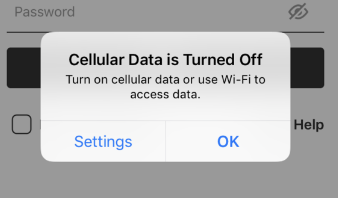
- If this setting is toggled off and they do not have a Wi-Fi connection, they will receive the following pictured error. Enable cellular in order to use the Alarm.com app in areas with no Wi-Fi connection.
- If the customer is using a VPN, disable it and test the network connection.
- If there is a network connection when the VPN is disabled, contact the VPN developer for additional assistance.
- If the prior steps do not resolve the issue, contact CORE for additional assistance.
To resolve a network connection error on Android:
If a customer receives a message on the Alarm.com app for Android saying, There was a problem connecting to the servers, the customer has likely disabled services the Alarm.com app needs to function.
- Verify the customer has the most current version of the Alarm.com app. For more information, see Find the mobile app version on a device.
- Verify the customer has an active data or Wi-Fi connection, then close and reopen the Alarm.com app.
- If cellular data is not working, try Wi-Fi instead.
- If Wi-Fi is not working, attempt to use cellular data only.
- Verify the customer has enabled all applicable permissions within app settings.
Note: The process to enable app permissions may vary by device. - If the customer is using a VPN, disable it and test the network connection.
- If there is a network connection when the VPN is disabled, contact the VPN developer for additional assistance.
- If the prior steps do not resolve the issue, contact CORE for additional assistance.