
Audio recording and playback for 24/7 Onboard Recording
With compatible Alarm.com cameras, audio recording is included in playback as part of their 24/7 Onboard Recording video system. Simply insert a micro SD card into a compatible Two-Way Audio camera and create a continuous recording schedule to capture video and audio around the clock. Customers can access footage and audio, as well as find relevant events fast, from the customer website using the interactive Smart View timeline.
For more information about Onboard Recording, see Onboard Recording (SD card) with Smart View for video devices.
Note: Audio recordings are not enabled by default. For more information about verifying audio recording is enabled, see Two-Way Audio Installation and User Guide.
Compatibility requirements:
- A video service package with the Audio for Non-doorbell Cameras and Continuous Audio Recording for Onboard Video add-ons.
- The customer has accepted the Audio recording Agreement. For more information, see Audio recording Agreement.
- A compatible Alarm.com camera:
- ADC-V515
- ADC-V516
- ADC-V523/523X
- ADC-V530
- ADC-V724/724X
- ADC-VC727P
- ADC-V729/V729AC/VC729P
- ADC-V730
- ADC-VC7398PA
- ADC-VC8498PA
- ADC-VC8498P
- ADC-VDB775
- A compatible micro SD card. Alarm.com carries 64 GB to 1.5 TB SanDisk micro SD cards. For more information about compatible micro SD cards, see Onboard Recording (SD card) with Smart View for video devices.
Note: Audio recording does not significantly impact the estimated days of video storage.
Enable audio recording
Important: Audio is not automatically enabled for rules that are automatically created when an SD card is inserted into a camera.
To enable audio recording using the Alarm.com customer website:

- Log in to the Alarm.com customer website.
- Click Video.
- Click Recording Rules.
- Click Local Recordings.
- Click
 to edit the desired recording rule.
 - In Audio, click to select Record to SD card.
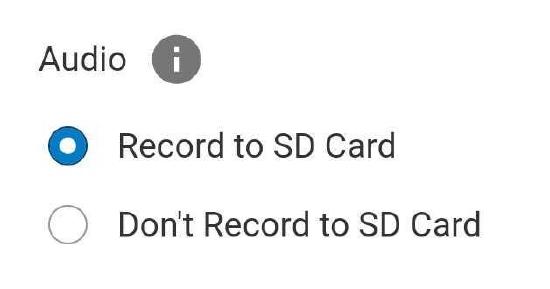
- Configure the audio settings as desired.
- Click Save.
To enable audio recording using the Alarm.com app:
- Log in to the Alarm.com app.
- Tap
 .
. - Tap
 .
. - Tap Recording Rules.
- Tap Local.
- Tap Add to create a new Onboard Recording rule, or tap to edit an existing rule.
- In Audio, tap to select Record to SD Card.

- Configure the audio settings as desired.
- Tap Save.
Frequently asked questions
Is the micro SD card automatically formatted to a compatible camera?
Yes. The micro SD card is automatically formatted and encrypted when inserted into a compatible camera.
Do I need to create an Onboard Recording rule to begin recording 24/7?
No. A 24/7 Onboard Recording rule is automatically created upon successful installation and can be edited by the customer at any time.
If a micro SD card is formatted to a camera, can it be used in a different one?
Yes. A micro SD card can be used in a different camera, but it must be reformatted first.
If a micro SD card is removed, can recordings be viewed on a different device?
No. Micro SD card encryption keeps video recordings private, so they can't be viewed on other devices if the card is removed from the camera.