
Associate a security device to a continuously recording camera
Looking for Linked Devices or Linked Systems?
Linked Devices are devices that were recently used to log in to a customer account. For more information, see Linked Devices.
Linked Systems allows you to switch between logins on a customer account easily. For more information, see How can multiple account systems be linked?.
Associate a supported security device to a video device to find relevant recordings quickly. Go directly from an event triggered by the security device on the Activity page to the relevant footage from the camera.
Important: The video device must have a continuous recording rule created (i.e., the device is associated to an SVR or has an SD card installed and set up for Onboard Recording) in order to be compatible with Quick Links using the Alarm.com app.
Compatibility requirements
Live View association requirements
- An active video device installed on the customer account
- A supported security device installed on the customer account.
- For a list of supported devices, proceed to Supported security devices.
- A service package that supports Live View for video devices.
Saved Clip association requirements
- A service package that supports Video Analytics
- A video device compatible with Video Analytics
- A Video Analytics rule must be created for the desired video device
- A supported security device installed on the customer account.
- For a list of supported devices, proceed to Supported security devices.
Supported security devices
- Security Sensors
- Intrusion sensors
- Contact sensors
- Motion sensors
- SDS Sensors
- Glass break sensors
- Alarm.com Flex IO® sensors
- Smart locks
- Lights
- Garage doors
- Car Connectors
- ADC-3035L
- ADC-CC100/CC110X
- Access Control doors
- Personal Safety devices
- Safety Button
Create Quick Links
Quick Links allow customers to quickly access footage by associating a camera to a security device. Quick Links can be created using the Alarm.com customer website and Alarm.com app.
Note: You can associate up to four video devices per security device. If multiple cameras are associated to a single security device:
- Quick Links for Saved Clips will display the primary camera's Saved Clips first
- Quick Links for Live View will display all live feeds in multi-view mode, with the primary camera shown first
To create Quick Links using the Alarm.com customer website:

- Log in to the Alarm.com customer website.
- Click Settings.
- Click Manage Devices.
- Click
 next to the desired security device.

- Click Associated Devices.
- Click to select up to four cameras.
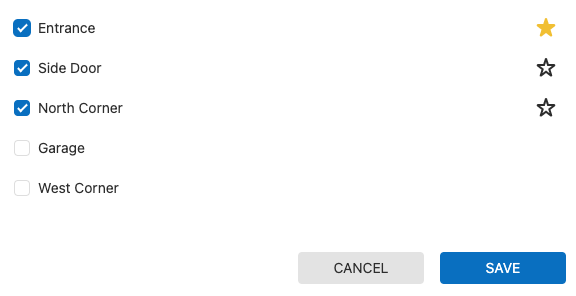
- Click
 next to a camera to make it the primary camera for that security device.
- Click Save.
To create Quick Links using the Alarm.com app:
- Log in to the Alarm.com app.
- Tap
 .
- Tap Manage Devices.
- Tap next to the desired security device.
- Tap Associated Devices.
- Tap to select up to four cameras.
- Tap next to a camera to make it the primary camera for that security device.
- Tap Save.
View linked footage
After Quick Links are created, the footage tied to the linked device and Activity event can be viewed using the Alarm.com customer website and Alarm.com app.
To view linked footage using the Alarm.com customer website:
- Log in to the Alarm.com customer website.
- Click Activity.
- Click Filters to narrow down your search.
- Locate the desired Activity event.
- Click the desired clip to view the recording.
Note: If there is more than one clip associated with an Activity event, or you would like to view the clip through the SVR Timeline: click the event to expand it, then click  .
To view linked footage using the Alarm.com app:
- Log in to the Alarm.com app.
- Tap
 .
- Tap
 to use filters to narrow down your search.
- Tap the desired Activity event.
- Tap the desired clip to view the recording.
- To view the recorded clip through the video player, tap the desired sensor activity, then tap Go to Recordings.
Note: If there is more than one clip associated with an event, tap to expand the event. Then tap the desired clip to view the recording.
Remove Quick Links
Quick Links can be removed using the Alarm.com customer website and Alarm.com app.
Remove Quick Links using the Alarm.com customer website:
- Log in to the Alarm.com customer website.
- Click Settings.
- Click Manage Devices.
- Click on the desired security device.
- Click Associated Devices.
- Click to deselect the desired cameras.
- Click Save.
Remove Quick Links using the Alarm.com app:
- Log in to the Alarm.com app.
- Tap .
- Tap Manage Devices.
- Tap on the desired security device.
- Tap Associated Devices.
- Tap to deselect the desired cameras.
- Tap Save.