
Export saved video from an SVR/CSVR
Clips of saved recordings from an Alarm.com Stream Video Recorder can be downloaded locally or uploaded to the Alarm.com cloud using the Alarm.com customer website. Downloaded clips are in .mp4 format and can be up to 15 minutes long, depending on the SVR/CSVR. Uploaded clips count towards clip upload and storage limits for the account and can be up to 5 minutes long for compatible SVRs and CSVRs.
Note: Saved recordings can also be exported using the local interface of SVRs and CSVRs. For more information, see:
Export clip duration options
Important: Third-party camera footage exports are limited to a duration of 5 minutes regardless of the method used to export the footage.
Clips of saved recordings can be exported using the Alarm.com customer website in a variety of different lengths.
| SVR/CSVR model | Download clip durations | Upload clip durations |
|---|---|---|
|
ADC-SVR100 ADC-SVR122 ADC-CSVR126 |
30 seconds |
Incompatible |
|
ADC-SVR210 ADC-CSVR2000P ADC-CSVR2008P ADC-CSVR2016P ADC-CSVR2108P ADC-CSVR2116P |
30 seconds |
30 seconds |
To export saved video from an SVR/CSVR:
- Log in to the Alarm.com customer website.
- Click Video.
- Click SVR Timeline.
- Mouse over the desired video feed, and then click
 .
. - Click Export Video.
- In the Export Video pop-up modal:
- Click on the calendar to select the date to export footage from.
- Using the Start Time dropdown menu, select the time of day the exported footage should start from.
- Using the Duration dropdown menu, select the duration of the clip to export.
- Select Include Audio if you want the downloaded clip to include the device's audio.
Note: This option is only available for devices that support audio for local recordings. - Using the Export Option dropdown menu:
- Select Direct Download to download the footage to local storage.
- Select Add to Saved Video Clips to upload the footage to the Alarm.com cloud.
- Select Direct Download and Add to Saved Video Clips to perform both of the above actions for the footage.

- Click Export.
- Click Continue.
- Direct Download clips will begin downloading to the computer being used as an .mp4 file.
Note: If the request to download the video clip times out, reduce the clip duration and try to download the video again.
Manage exports in the Unified Download Manager
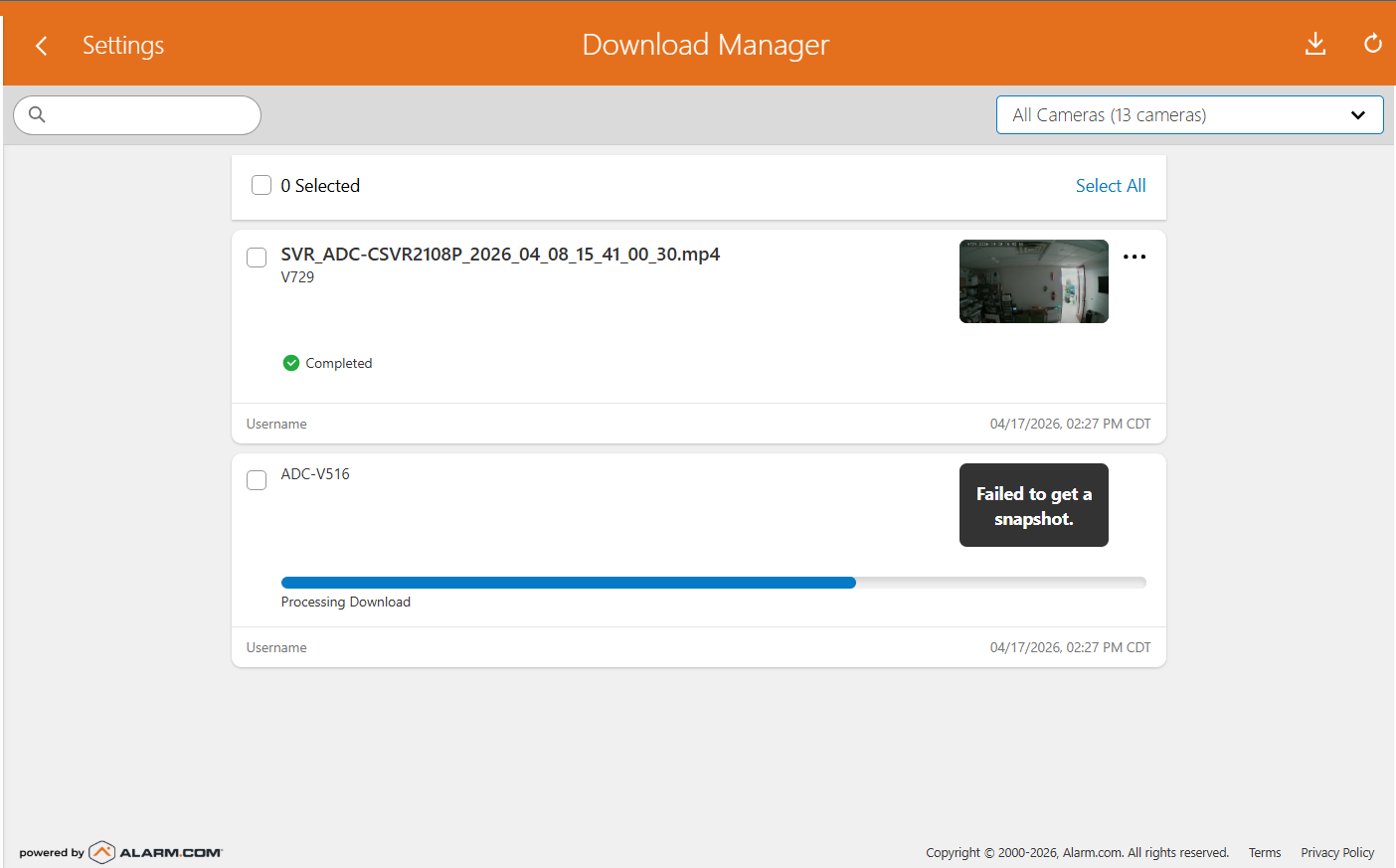
Users can track current export progress and view details for all exports on the customer account over the last 24 hours from the Unified Download Manager page using the Alarm.com customer website. The Download Manager syncs export requests across devices, so it is possible to request a clip export on the Alarm.com customer website and view the progress of that export using the Alarm.com customer website on a different device as needed.
Important: While it is possible to view download entries and their corresponding download link on all platforms, the actual video file will only be saved to the specific device where the export process was started.
- Track download progress and file download details across devices
- Retry downloads that fail, or re-download a file that was successfully downloaded on a different device
- Clear completed or failed downloads from the list to keep the page organized and up to date
- Bulk actions allow for retrying or clearing multiple or all downloads on the page
Feature limitations
- This feature is for downloading clips to the local disk drive. This feature does not include exporting clips to the Alarm.com cloud from an SVR.
- This feature is only available using the Alarm.com customer website. Clip downloads are not supported using the Alarm.com app.
- Exports for the ADC-SVR100, ADC-SVR122, and ADC-CSVR126 cannot display thumbnail previews on the Unified Download Manager page.
- The download progress bar is not available for SVR clip exports at this time.
To view the Unified Download Manager
- Log in to the Alarm.com customer website.
- Click Settings.
- Click Download Manager.
To retry an export from the Unified Download Manager
- Log in to the Alarm.com customer website.
- Click Settings.
- Click Download Manager.
- Click
 .
. - Click Retry to attempt to export the file to the current device.
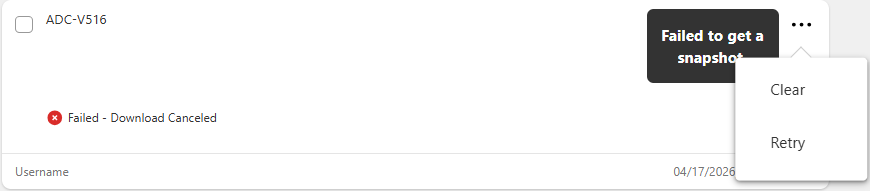
Important: If you are unable to retry the export process and see the error Source Unavailable pop up on the page, the original footage is no longer available for access on the local hardware (e.g., it has been overwritten). In this case, the footage cannot be retrieved. The Clear action removes the entry from the Download Manager list, but it does not delete the saved video file from your device's local storage.
To clear exports from the Unified Download Manager
- Log in to the Alarm.com customer website.
- Click Settings.
- Click Download Manager.
- Click .
- Click Clear to remove the download card for a completed or failed export.
Important: The Clear action removes the entry from the Download Manager list, but it does not delete the saved video file from your device's local storage.