
Customer trouble condition help
Customers can troubleshoot and resolve common system issues on their own, without the need to escalate simple problems to their service providers. By simply tapping a trouble condition wherever it appears, customers can access more information about the issue. The information provided may include basic troubleshooting steps, launching additional troubleshooting wizards, viewing video content, and service provider info for further assistance.
Trouble condition explanations and help are available wherever trouble condition alerts appear:
- Alarm.com customer website
- Alarm.com app
- Customer trouble condition emails
Note: Images are available using the Alarm.com app to help identify devices in malfunction.
To access trouble condition help:
Tapping on a trouble condition alert takes the customer to Alerts & Issues. On this page, more information is provided about what the trouble condition means and what caused it.
For trouble conditions with simple solutions (e.g., Sensor Bypassed), the page displays information about how to resolve the issue. For common trouble conditions (e.g., Device Low Battery), a Watch Tutorial button is available to view videos for more information. Some trouble conditions (e.g., Video Device Not Responding) include a Fix It button that launches any related troubleshooting wizards.
Trouble condition help also contains a link to Contact Support, so customers can receive additional guidance from their service provider if needed. The following images are examples of what a customer may see:


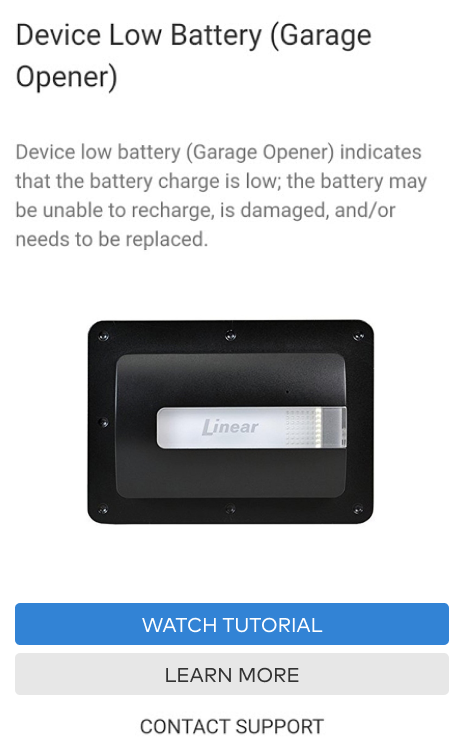
Example trouble condition explanations and help text
Front Door Sensor Bypassed: Indicates that your system is not actively monitoring this sensor, which is being ignored and will not trigger an alarm if it is activated. This can happen when a contact sensor is open when your security system is armed. Resolve this issue by disarming your system, closing the contact sensor, then rearming your system.
Image Sensor Tamper: Indicates that this image sensor was moved, opened, or shaken. Image sensors have an accelerometer that senses when it is in motion or tilted. Any time your image sensor is moved or something causes it to vibrate (like a door closing hard), you will see this issue. Make sure your image sensor is upright and leave it motionless for at least 5 minutes.
Panel Low Battery: Indicates that the backup battery in your security panel is drained, which typically happens after an AC power failure. To resolve the issue, let the battery recharge. If the battery cannot recharge, it may need to be replaced by support.
Thermostat Too Warm: Indicates that the temperature reported by your thermostat is higher than the threshold that you have specified in the Temperature Notification rule. Check your thermostat and rule settings.