
Enable Doorbell Camera notifications to Qolsys IQ Hub
Receive notifications on the Qolsys IQ Hub screen when a doorbell camera detects motion or the button is pushed.
Requirements
To enable doorbell camera notifications to the Qolsys IQ Hub:
| Service package |
A service package that supports at least one doorbell camera. |
|---|---|
| Panel hardware |
The Qolsys IQ Hub must be connected to their router's or access point's Wi-Fi network. The doorbell camera and the Qolsys IQ Hub must be connected to the exact same device's Wi-Fi network (SSID) and band (i.e., 2.4 GHz). Note: This feature is incompatible with the IQ remote. |
| Doorbell camera |
One of the following:
|
| Wi-Fi |
|
To enable the doorbell camera notification:
Partner Portal
- Log in to the Partner Portal.
- Find the customer account.
- Click Equipment.
- Click Video Devices.
- Using the Video Device dropdown menu, select the desired doorbell camera.
- Click to select Send Motion Notifications To Panel and/or Send Button Pushed Notifications To Panel as desired. The settings update automatically after selecting an option.
Partner MobileTech app
- Log in to the Partner MobileTech app.
- Find the customer account.
- Tap Equipment.
- Tap Video Devices.
- Tap the desired doorbell camera name.
- Tap Send Motion Notifications To Panel and/or Send Button Pushed Notifications To Panel as desired. The settings update automatically after tapping an option.
Alarm.com app
- Log in to the Alarm.com app.
- Tap
 or
or  .
. - Tap
 .
. - Select the desired video doorbell.
- Tap General.
- Tap the Panel Motion Notifications and/or Panel Button Press Notifications toggle switches to configure the settings as desired.
- Tap Save.
Alarm.com customer website
- Log in to the Alarm.com customer website.
- Click Video.
- Click Settings.
- Select the desired video doorbell.
- Click General.
- Click the Panel Motion Notifications and/or Button Press Notifications toggle switches to configure the settings as desired.
- Click Save.
Note: If the user also wants to view live video from the panel screen's doorbell notification, configure Stream Video to Security Panel Screen using the Customer Website. For more information about setting up Stream Video to Security Panel Screen, see Stream live video from Alarm.com cameras on Qolsys panels.
Notifications
The IQ Hub makes a notification sound based on its internal settings. For more information about how to adjust notification volume, see Adjust the notification volume on the Qolsys IQ Hub.
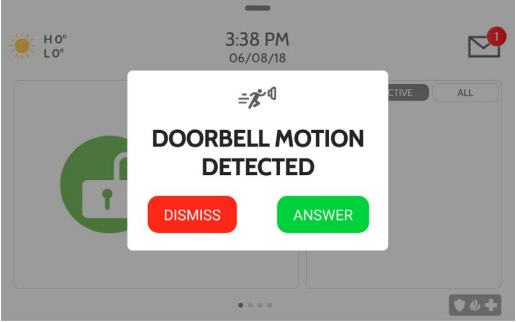
Depending on the type of notifications a user has enabled, the user sees either motion detection event notifications or button push event notifications on their panel screen.
Note: For the Answer option to appear, the user must have Stream Video to Security Panel Screen set up for the doorbell camera. If this setting is not configured, the user only has the option to Dismiss the doorbell notification. For more information about setting up Stream Video to Security Panel Screen, see Stream live video from Alarm.com cameras on Qolsys panels.

Troubleshooting
If notifications are not displaying on the panel, verify:
- All requirements for the feature. For more information about the requirements, see Requirements.
- Notification settings are properly saved on the Customer Website. For more information about setting up doorbell camera notifications, see To enable the Doorbell Camera notification.
- Both the Qolsys IQ Hub and the doorbell camera are connected to the exact same device's Wi-Fi network (SSID), and band (2.4 GHz).
- The panel passes a Dual-Path test. For more information about performing a Dual-Path test, see Ping the system to verify Dual-Path communication and System Check User Guide.
- The following troubleshooting steps are complete:
- Disable and re-enable stream to the panel.
- Upgrade the panel to its latest firmware version.
- Power down the panel and disconnect AC power.
- Disconnect power from the access point if applicable and router, and wait 2 minutes.
- Reconnect power to the router, access point if applicable, then the panel.
Router settings
The following steps require adjusting router settings. For more information about and help with changing router settings, refer to the router manual, router manufacturer, or customer's Internet Service Provider.
- Multicast broadcasts are enabled on the Wi-Fi router.
- Log in into the router and verify that Multicast Packet Forwarding is enabled.
- If Multicast Packet Filtering is disabled, enable it.
- If the router does not have a Multicast Packet forwarding/filtering option, then multicast broadcasts may not be an option on the router. Check with the Internet Service Provider or in the router's user manual to verify if the option is available. If a router does not support multicast broadcasts, the router would need to be replaced in order to be compatible with doorbell camera notifications to the Qolsys IQ Hub.
- Verify that Wi-Fi Client Isolation is disabled. For some routers/access points, it is enabled by default.
- Wi-Fi Client Isolation may also be called Client Isolation or some variation of this.