
LiftMaster, Chamberlain, Craftsman, or Raynor Wi-Fi Garage Door Opener - Installation Guide
Required Items for Installation:
- LiftMaster or Chamberlain Wi-Fi Enabled Garage Door Opener (i.e., motor)
Caution: The Chamberlain LW5000EV, despite having MyQ and Wi-Fi printed on it, still requires the use of a MyQ Internet Gateway or MyQ Smart Garage Hub for remote control. For more information regarding compatibility, see Garage door compatibility.
- Smartphone, tablet, or laptop
- Wi-Fi network name and password for the property’s Wi-Fi network
- 2.4 GHz Wi-Fi signal in the garage
Test the Wi-Fi signal strength
- Verify the mobile device is connected to the customer's Wi-Fi network.
- Hold the mobile device near the place where the Garage Door Opener will be installed, and check the Wi-Fi signal strength.

Mount the Wi-Fi Garage Door Opener
The Wi-Fi Garage Door Opener should be mounted according to the instructions packaged with the garage door opener.
Connect the Wi-Fi Garage Door Opener to the Wi-Fi Network
Note: To see if other Wi-Fi enrollment options exist, consult the motor's installation guide.
- Put the garage door opener into Wi-Fi Setup mode by pressing and releasing the yellow or white Learn button on the garage door opener (i.e., motor) 2-3 times. The garage door opener beeps once, and a blue light flashes. You have 20 minutes to complete the connection process.

Note: When installing a gate operator, press the Learn button twice on the primary operator (the operator will beep as it enters learn mode). The LiftMaster Internet Gateway will pair to the operator if it is within range and the operator will beep if programming is successful. For more information about compatible LiftMaster gate operators, see Can the LiftMaster MyQ solution control gate operators?. - On a mobile device or laptop, connect to the Wi-Fi Network with the “MyQ-“ prefix.
- Launch the web browser on that device and go to setup.myqdevice.com. Follow the on-screen prompts to connect the garage door opener to the property’s Wi-Fi network.
- Alternatively, enter either 192.168.0.1 if the button is yellow or 192.168.43.1 if the button is white in the URL bar to navigate to the same web page.
Note: Always type in the full URL address, do not let it auto-complete, and do not type www or Https before the web address.
- Alternatively, enter either 192.168.0.1 if the button is yellow or 192.168.43.1 if the button is white in the URL bar to navigate to the same web page.
- When instructed to download the MyQ app, proceed to the next section of instructions. Do not register the device using the MyQ app.
Note: If the option to scan for Wi-Fi networks does not appear along with other Wi-Fi prompts, select Erase Wi-Fi on the MyQ device setup site to clear previous Wi-Fi information and allow the Scan option to appear.
Add or Register the Wi-Fi Garage Door Opener
The Wi-Fi Garage Door Opener can be registered on an eligible account by following the steps below:
Note: It is not possible to register the Wi-Fi Garage Door Opener with Alarm.com if it is already registered with MyQ/LiftMaster. It is required to delete the Garage Door Opener from a MyQ account before attempting to register it to Alarm.com.
On Wi-Fi Garage Door Openers with a white learn button, deleting the motor from MyQ will factory reset and clear Wi-Fi credentials.
To add the gateway via the Alarm.com customer website:
- Log in to the Alarm.com customer website.
- Click Settings.
- Click Manage Devices.
- Click Add Device.
- Click Garage Door.
- Select the desired LiftMaster device.
Note: If the option does not display, verify that the LiftMaster integration add-on has been added to the customer’s service package. - Click Next.
- Follow the on-screen instructions to complete the device installation.
Note: This serial number is separate from the Product S/N. Look for the logo to find the correct serial number.
 - The page displays a pinwheel, indicating that the device is being added. When finished, it redirects to the Garage page, where the new devices are listed.
LED guide
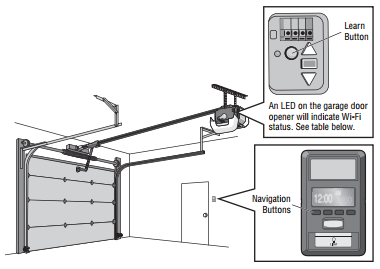
| LED | Definition |
|---|---|
|
Off |
Wi-Fi is not turned on. |
Blue Blinking |
Garage door opener is in the Wi-Fi learn mode. |
Blue Solid |
Mobile device connected to the garage door opener. |
Blue and Green Blinking |
Attempting to connect to router. |
Green Blinking |
Attempting to connect to the internet server. |
Green Solid |
Wi-Fi has been set up and garage door opener is connected to the internet. |
