
Manage Devices
With the Manage Devices page available on the Alarm.com app and Alarm.com customer website, users can view and manage their entire device ecosystem in one place.
Features
- View and manage all existing devices from one centralized location with intuitive device categorization.
Note: Device categories include: Lights, Locks, Garage Doors, Security, Thermostats, Water, Video Devices, Cars, Location Services, Voice Assistants, Audio, Detectors, Doors, and Other. - Add new devices using the Add Device Portal.
Important: The service package must support devices (e.g., video devices, lights, water sensors, etc.) for them to display in Manage Devices on the Customer app and Customer Website. - Quickly rename and remove devices or access additional device-specific settings.
- Accessing a device's settings will take you to the device-specific section and may vary based on whether you log in from the app or Alarm.com customer website.
Note: Some device icons may display the status, but statuses should be viewed and verified using the main home page for the device.
Access Manage Devices
To manage devices using the Alarm.com app:
Important: The Alarm.com app version must be 4.17.1 or higher for iOS and 4.15.2 or higher for Android to access the Manage Devices page.
- Log in to the Alarm.com app.
- Tap
 .
. - Tap Manage Devices.
- Find the desired device to manage.
- To access additional settings, tap
 .
.
For more information about a specific feature of Manage Devices, see any of the following sections.
To manage devices using the Alarm.com customer website:
- Log in to the Alarm.com customer website.
- Click Manage Devices.

- Find the desired device to manage.

- To access additional settings, click .
Add device
To add a device using the Alarm.com app:
- Log in to the Alarm.com app.
- Tap .
- Tap Manage Devices.
- Tap
 .
. - In Add Device, tap to select the type of device to be added.
- In Devices, tap to select the device to be added.
- Follow the Add Device wizard to install the device.
To add a device using the Alarm.com customer website:
- Log in to the Alarm.com customer website.
- Click Manage Devices.
- Click Add Device.

- In Add Device, click to select the type of device to be added.
- In Devices, click to select the device to be added.
- Follow the Add Device wizard to install the device.
Rename device
To rename a device using the Alarm.com app:
- Log in to the Alarm.com app.
- Tap .
- Tap Manage Devices.
- Find the desired device to manage.
- Tap .
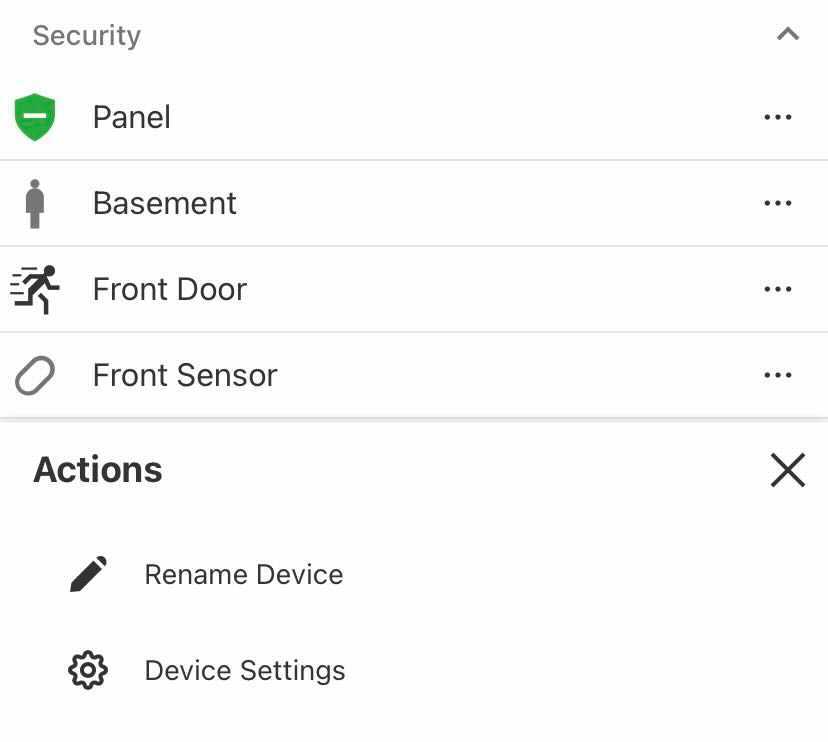
- Tap Rename Device.
.jpg?revision=1&size=bestfit&width=350&height=311)
- In the Rename Device field, enter the desired name.
Note: There may be limitations to renaming third-party devices. - Tap Close.
To rename a device using the Alarm.com customer website:
- Log in to the Alarm.com customer website.
- Click Manage Devices.
- Find the desired device to manage.
- Click .
- Click Rename Device.

- In the Rename Device field, enter the desired name.
Note: There may be limitations to renaming third-party devices. - Click Rename.
Remove device
To remove a device using the Alarm.com app:
- Log in to the Alarm.com app.
- Tap .
- Tap Manage Devices.
- Find the desired device to manage.
- Tap .
- Tap Remove Device.
- Follow the on-screen prompts to remove the device from the system.
To remove a device using the Alarm.com customer website:
For assistance removing Z-Wave devices that are no longer communicating, see Remove a malfunctioning Z-Wave device from the network.
- Log in to the Alarm.com customer website.
- Click Manage Devices.
- Find the desired device to manage.
- Click .
- Click Remove Device.
- Follow the on-screen prompts to remove the device from the system.
Edit device settings
To edit a device's settings using the Alarm.com app:
- Log in to the Alarm.com app.
- Tap .
- Tap Manage Devices.
- Find the desired device to manage.
- Tap .
- Tap Device Settings.
.jpg?revision=1&size=bestfit&width=350&height=314)
- Make any desired changes to the device's settings.
To edit a device's settings using the Alarm.com customer website:
- Log in to the Alarm.com customer website.
- Click Manage Devices.
- Find the desired device to manage.
- Click .
- Click Device Settings.
- Make any desired changes to the device's settings.