
Cancel pending panel, lock, and garage commands
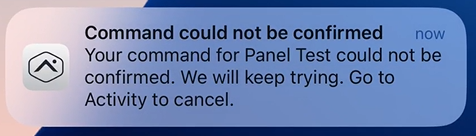
You can quickly and easily cancel pending commands for panels, locks, and garage door control from anywhere. If a device command is unsuccessful, you will receive push notifications and in-app pop-up messages to inform you. From the Activity timeline, they can tap the event for more details and tap Cancel Command for quick cancellation.
Note: Pending commands can only be cancelled using the Alarm.com app.
Features
- Easily cancel pending panel commands (i.e., arm stay, arm away, and disarm), Z-Wave lock commands, and Z-Wave garage door commands
- Avoid pending actions from occurring later when they are not expected
- Receive a pop-up message in the app or push notifications to be alerted when a command does not successfully complete
Note: A command is considered to have timed out after running for 3 minutes without success.
Requirements
For this feature to appear, the Alarm.com app must be either:
- Android version 5.7.7+
- iOS version 5.10.2+
Cancel a pending command
Pending commands can be cancelled from the pop-up message in the Alarm.com app or the push notification alert.
To cancel a pending command using the Alarm.com app:
- Log in to the Alarm.com app.
- In the pending command pop-up message, tap Go to Activity.
- If Dismiss is tapped, the command will continue to keep trying to connect.

- If Dismiss is tapped, the command will continue to keep trying to connect.
- Tap to select the event for the pending command, then tap Cancel Command to initiate the cancellation.


- Tap Cancel Command to confirm.

To cancel a pending command using the push notification:
Important: Push notifications must be enabled. For more information, see Customer is not receiving mobile push notifications.
- Tap the pending command push notification to open the Activity section in the Alarm.com app.
- Tap to select the event for the pending command, then tap Cancel Command to initiate the cancellation.
- Tap Cancel Command to confirm.