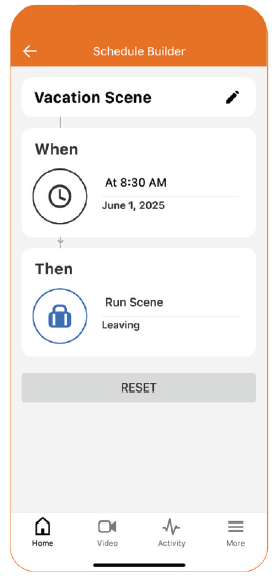
One-Time Scheduled Scenes Overview
Schedule Scenes to run at a specific date and time to boost convenience and enable seamless, hands-free automation.
One-Time Scheduled Scenes can be configured from the Automation section of the Alarm.com app or Alarm.com customer website.
Leaving for Vacation
Schedule your “Away” Scene to run the morning of an early flight so you have one less thing to worry about.
Preparing Event Space
Schedule the “Event” Scene to run before guests arrive for an event so no one needs to come on site or manually trigger the Scene

How it works:
- Navigate to the Automation section on Alarm.com customer website or Alarm.com app.
- Click Schedules.
- Click + New Schedule.
- Name the schedule.
- In When, select the date and time to run the Scene.
- In Then, select which Scenes to run .
- Click Save.
For more information, see Schedule/edit a One-Time Scheduled Scene.